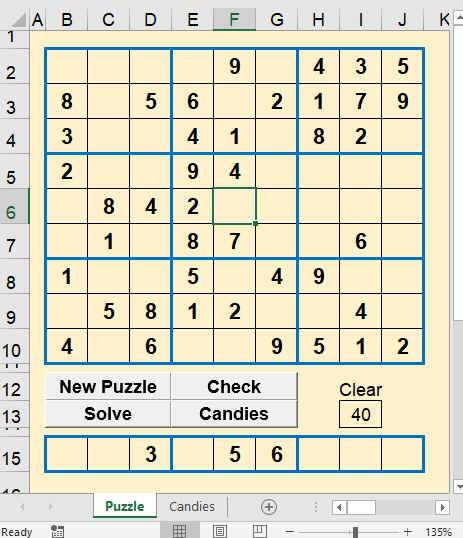
Here is a numbers game in Excel where a number can only appear
once on a box of nine, and along the row and column. It creates
the puzzle reasonably fast as it's written, as usual, with
Rudimentary but easy to understand code.
During development I had to stop Excel a few times with the Task Manager when it
went into an endless loop. So, make sure to save the file before running the
game!
Let's start by laying out the grid. Name the sheet Puzzle. Then copy it and name
the copy Solution. The Solution sheet only uses down to row 10, the rest can be
deleted.
It shows candidates in row 15 for a cell as it's selected. Hit the
Candies button and we'll hide the candidates or bring them back.
Option Explicit
Sub ShowHideCandies()
Range("D15").EntireRow.Hidden = Not
Range("D15").EntireRow.Hidden
End Sub
Now we'll create a New Puzzle.
Sub CreatePuzzle()
Dim intRow As Integer
Dim intColumn As Integer
Dim intLoop As Integer
Dim intRnd As Integer
Dim blnOK As Boolean
Dim intEnd As Integer
Dim intFinish As Integer
'Delay loop or ScreenUpdating appears to set to
False too quick
For intLoop = 1 To 10
Range("A1 : J10") = ""
Range("A1 : J10").Font.Color = vbBlack
Next intLoop
Application.ScreenUpdating = False
'If puzzle is stuck then start again from here
StartHere:
'Counter for starting again
intFinish = 0
Randomize
For intRow = 2 To 10
'Try each row up to 20 times from here
TryFromHere:
'If this puzzle does not work
then go to the beginning again
If intFinish > 20 Then GoTo StartHere
'Clear the row as it may be
another attempt
Range(Cells(intRow, 2), Cells(intRow, 10)) = ""
For intColumn = 2 To 10
'Counter for abandoning
the row
intEnd = 0
Do
'Random
number 1 to 9
intRnd = Int(Rnd * 9 + 1)
'Set OK to
place into cell
blnOK = True
'Is the number in the block of 9 cells?
'Unrem this when the function is
written
'blnOK = Not funcCheck3x3(intRow,
intColumn, intRnd)
'Check along the row and the column
For intLoop = 2 To 10
If Cells(intRow, intLoop)
= intRnd _
Or Cells(intLoop,
intColumn) = intRnd Then
blnOK = False
End If
Next intLoop
'Increment counter to start row again
intEnd = intEnd + 1
'If row
is not OK after 20 tries then start row again
If intEnd = 20 Then
'Increment counter to start from the beginning
intFinish = intFinish + 1
'Start row again
GoTo TryFromHere
End If
Loop Until blnOK
'It's OK,
so put the number into the cell
Cells(intRow, intColumn) = intRnd
Next intColumn
Next intRow
'Copy numbers to Solution sheet
Worksheets("Solution").Range("A2 : J10").Value _
= Worksheets("Puzzle").Range("A2 : J10").Value
'More to
come
'Fire the Candies proc
Range("F7").Select
Range("F6").Select
End Sub
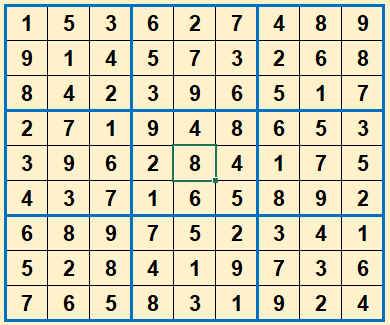
That's not quite correct as there are duplicate numbers in the blocks of
nine. Here is the function to check for those.
Function funcCheck3x3(ByVal iRow As Integer, ByVal iCol As Integer, iRnd As
Integer) As Boolean
'Check whether the number is already in block of 9
Dim intR As Integer
Dim intC As Integer
'Find
top left cell of the block
'The row
intR = 2
If iRow > 4 Then intR = 5
If iRow > 7 Then intR = 8
'The
column
intC = 2
If iCol > 4 Then intC = 5
If iCol > 7 Then intC = 8
'Cycle
through the block
For iRow = intR To intR + 2
For iCol = intC To intC + 2
If Cells(iRow, iCol) = iRnd Then funcCheck3x3 =
True
'The number is already
there
Next iCol
Next iRow
End Function
Now unrem the function call in the CreatePuzzle
procedure.
That gives us the numbers for the puzzle but not the means of playing a game.
For this we must hide some numbers. The more number are hidden the harder it is
to rediscover them again.
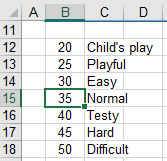
To select the amount of numbers to hide I've put a
validation list into cell I13. The list is on the Solution sheet at B12:B18.
In I13 on the Puzzle sheet was Clear 40 or you might like to have
appropriate text to describe the task.
=VLOOKUP(I13,Solution!B12:C18,2)
Here is the code to add to the CreatePuzzle procedure to hide random cells.
'More to come - you can delete me now
'Erase some numbers according to users' choice in I13
For intLoop = 1 To Range("I13")
Do
intRow = Int(Rnd * 9 + 2)
intColumn = Int(Rnd * 9 + 2)
Loop Until Cells(intRow, intColumn) <> ""
Cells(intRow, intColumn) = ""
Next intLoop
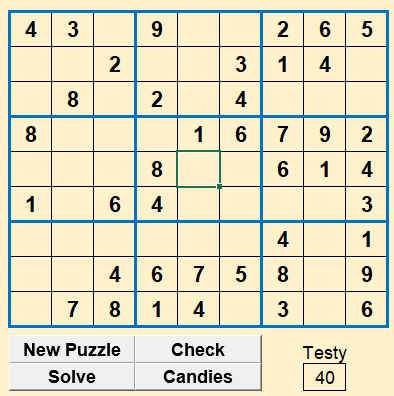
The Check
button can be used to find out whether any numbers entered are incorrect. It
races through the cells on the Solution sheet
comparing them with the Puzzle sheet cells.
Sub Check()
'Show incorrect numbers in red on puzzle sheet
Dim intRow As Integer
Dim intColumn As Integer
'Erase any previous red numbers
Range("B2:J10").Font.Color = vbBlack
For intRow = 2 To 10
For intColumn = 2 To 10
If Cells(intRow, intColumn) <> "" Then
If Cells(intRow, intColumn) <> Worksheets("Solution").Cells(intRow,
intColumn) Then
Cells(intRow, intColumn).Font.Color = vbRed
End If
End If
Next intColumn
Next intRow
End Sub
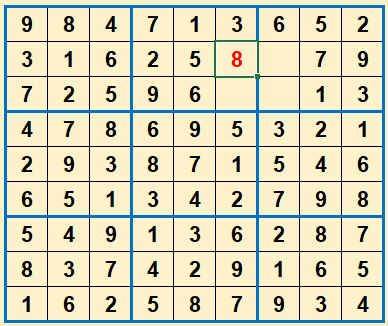
This is handy as there can sometimes be more than one solution although only one
correct solution. In this example four cells can be a 4 or an 8. The red cell in
this case is a 4.
Next is the Candidates procedure. You can leave it if you want, but it
is used for another option later on. It will run every time a puzzle cell is
selected.
Sub Candidates()
Dim intCandidate As Integer
Dim intLoop As Integer
Dim blnYes As Boolean
'Clear the candidates when a number is in the cell
and exit
If ActiveCell <> "" Then
Range("B15:J15") = ""
Exit Sub
End If
'Check whether number is present somewhere
For intCandidate = 1 To 9
'Check block of 9 cells
blnYes = funcCheck3x3(ActiveCell.Row, ActiveCell.Column,
intCandidate)
For intLoop = 2 To 10 'column
and row number
'Check along row
If Cells(ActiveCell.Row, intLoop) = intCandidate
Then blnYes = True
'Check down column
If Cells(intLoop, ActiveCell.Column) =
intCandidate Then blnYes = True
Next intLoop
If blnYes Then
'Not this candidate
as number is already somewhere
Cells(15, intCandidate + 1) = ""
Else
'Number not in row,
column or block so show candidate
Cells(15, intCandidate + 1) = intCandidate
End If
'Reset flag for next candidate
blnYes = False
Next intCandidate
End Sub
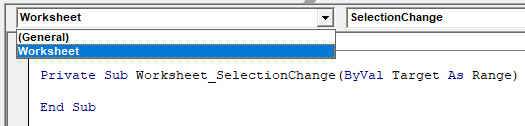
To get this to kick in, double click Sheet1 (Puzzle) in the Project Explorer
then click Worksheet in the Combo box, as shown below, and add the following
into the procedure.
Option Explicit
Private Sub Worksheet_SelectionChange(ByVal Target As Range)
'Keep the cursor in the puzzle or Clear cell
If Intersect(Target, Range("B2:J10")) Is Nothing _
And Intersect(Target, Range("I13")) Is Nothing Then
Range("F6").Select
End If
Candidates
End Sub
This procedure is now called every time another cell is selected.
Remember that the candidates can be hidden even if the above is added.
If it's time to give up on a puzzle then hit the
Solve
button.
Sub Solve()
'Check and show incorrect numbers in red and fill
blanks with green numbers
Dim intRow As Integer
Dim intColumn As Integer
Check
For intRow = 2 To 10
For intColumn = 2 To 10
If Cells(intRow, intColumn) = "" Then
Cells(intRow, intColumn) =
Worksheets("Solution").Cells(intRow, intColumn)
Cells(intRow, intColumn).Font.Color =
vbGreen
End If
Next intColumn
Next intRow
End Sub
Here is another way to solve the puzzle. Add a new sheet, named Candies, with
expanded rows and columns for candidates.
Make a copy called Blank Candies. A copy is going to be grabbed from Blank
Candies at the start of the game but only down to row 28.
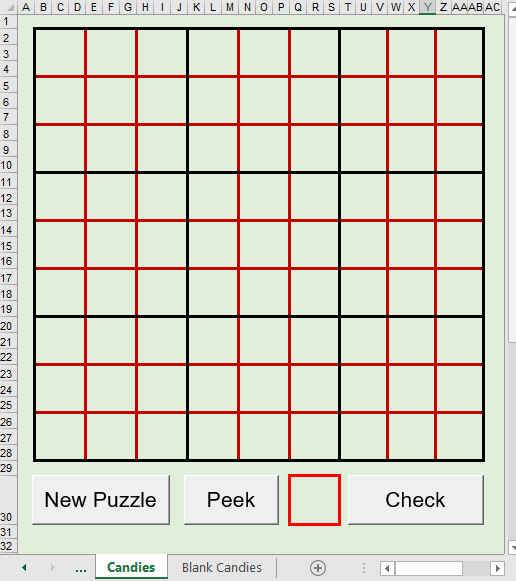
The NewCandiesPuzzle procedure copies the numbers off the
Puzzle sheet. If there is a number then it gets enlarged to the 9 cells of a
square. If there isn't a number then it inserts the candidates from the puzzle
sheet.
So, to play Sudoku this way hit the New Puzzle button on the Puzzle sheet and
then the New Puzzle button on the Candies sheet.
Sub NewCandiesPuzzle()
'This procedure shows either numbers or candidates
in cells on the Candies sheet
'by grabbing the data from the Puzzle sheet
'Outer loop variables for main cells on
Candies sheet
Dim intRowCandies As Integer
Dim intColumnCandies As Integer
'Inner loop variables for candidates
Dim intCandiesRow As Integer
Dim intCandiesColumn As Integer
'Main cells on Puzzle sheet
Dim intRowPuzzle As Integer
Dim intColumnPuzzle As Integer
'Candidate cells on Puzzle sheet
Dim intPuzzleCandidateColumn As Integer
Application.ScreenUpdating = False
Application.DisplayAlerts = False
'Load blank sheet
Sheets("Blank Candies").Range("B2:AB28").Copy Sheets("Candies").Range("B2")
'Start in B2 on the
Puzzle sheet
intColumnPuzzle = 2
intRowPuzzle = 2
'Cycle through the
top left cells on the Candies sheet
For intRowCandies = 2 To 26 Step 3
For intColumnCandies = 2 To 26 Step 3
'Fetch what's
in the Puzzle cell
Worksheets("Candies").Cells(intRowCandies, intColumnCandies) _
= Worksheets("Puzzle").Cells(intRowPuzzle, intColumnPuzzle)
'Check whether the cell on the Candies sheet
now displays a number
If Worksheets("Candies").Cells(intRowCandies, intColumnCandies) <> "" Then
'Yes, so merge the 9 cell block on the
Candies sheet to show a big solved number
Worksheets("Candies").Activate
Range(Cells(intRowCandies, intColumnCandies), Cells(intRowCandies + 2, _
intColumnCandies + 2)).Select
With Selection
.HorizontalAlignment = xlCenter
.VerticalAlignment = xlCenter
.MergeCells = True
.Font.Size = 30
.RowHeight = 15
End With
Else
'No, so put the candidates in from the
puzzle sheet
intPuzzleCandidateColumn = 2
Worksheets("Puzzle").Activate
Cells(intRowPuzzle, intColumnPuzzle).Select
'This fires the Candidates proc
For intCandiesRow = 0 To 2
For intCandiesColumn = 0 To 2
'Place candidates into the 3 x 3 grid
on the candies sheet
Worksheets("Candies").Cells(intRowCandies + intCandiesRow, _
intColumnCandies + intCandiesColumn) = _
Worksheets("Puzzle").Cells(15, intPuzzleCandidateColumn)
'from the Puzzle candidates cells in a
straight row 15
intPuzzleCandidateColumn = intPuzzleCandidateColumn + 1
Next intCandiesColumn
Next intCandiesRow
End If
'Move the Puzzle cell by 1 column for every
3 on the Candies sheet
intColumnPuzzle = intColumnPuzzle + 1
'Next third column on the Candies sheet
Next intColumnCandies
'Next row on the
Puzzle sheet
intRowPuzzle = intRowPuzzle + 1
'Start again with first candidate on the
Puzzle sheet
intColumnPuzzle = 2
'Next third row on
the Candies sheet
Next intRowCandies
Worksheets("Candies").Select
Application.DisplayAlerts = True
End Sub
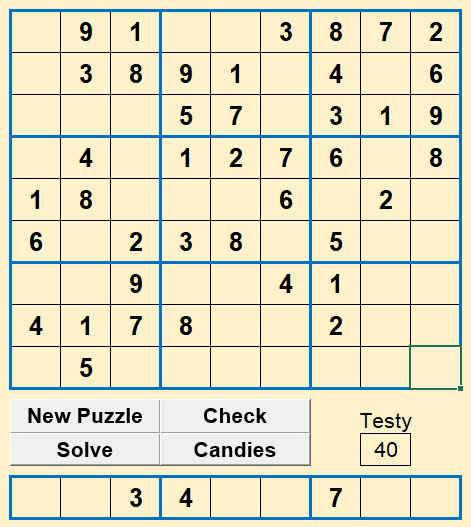
So we go from the above to the below. The candidates, above, are for the far bottom right cell.
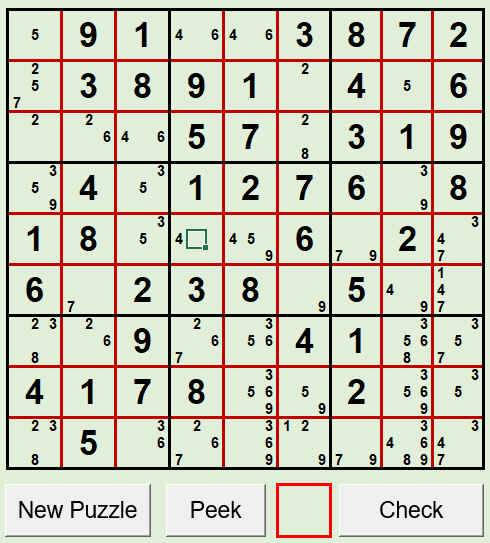
But there is more to come. When, like before, there are 2
solutions, the Peek button will give the answer before entering the number.
Click any of the candidate cells, then the Peek button.
Sub Peek()
Dim intRow As Integer
Dim intCol As Integer
Dim blnDummy As Boolean
intRow = ActiveCell.Row
intCol = ActiveCell.Column
'Find the top left
cell of candidates block
TopLeftCell intRow, intCol
'Peek the number
from the Solution sheet
Range("Q30") = Worksheets("Solution").Cells((intRow + 1) / 3 + 1, (intCol + 1)
/ 3 + 1)
End Sub
This is looking for the TopLeftCell procedure which will point intRow and intCol
to the top left cell of this number cell. Note that the border formatting, red
or black here, has to be thick.
Sub TopLeftCell(iRow As Integer, iCol As Integer)
'Find the top left cell of the 3 x 3 cells on
the Puzzle sheet
'or the top left cell of the 3 x 3
candidates on the Candies sheet
'and set the callers intRow and intCol to
it
'The blocks of 9 cells must have thick borders
Do
If Cells(iRow, iCol).Borders(xlEdgeLeft).Weight <> xlThick Then
iCol = iCol - 1
End If
Loop Until Cells(iRow, iCol).Borders(xlEdgeLeft).Weight = xlThick
Do
If Cells(iRow, iCol).Borders(xlEdgeTop).Weight <> xlThick Then
iRow = iRow - 1
End If
Loop Until Cells(iRow, iCol).Borders(xlEdgeTop).Weight = xlThick
End Sub
Anytime the numbers entered can be checked for correctness.
Sub CheckCandiesPuzzle()
'Show incorrect numbers in red on Candies sheet
Dim intCandiesRow As Integer
Dim intCandiesColumn As Integer
Dim intSolutionRow As Integer
Dim intSolutionColumn As Integer
intSolutionRow = 2
intSolutionColumn = 2
'Erase any previous
red numbers
Range("B2:AB28").Font.Color = vbBlack
'The big font size
indicates a solved number is present
For intCandiesRow = 2 To 26 Step 3
For intCandiesColumn = 2 To 26 Step 3
If Cells(intCandiesRow, intCandiesColumn).Font.Size = 30 Then
If Cells(intCandiesRow, intCandiesColumn) _
<> Worksheets("Solution").Cells(intSolutionRow, intSolutionColumn) Then
Cells(intCandiesRow, intCandiesColumn).Font.Color = vbRed
End If
End If
'Increment solution column by 1 for 3 of
candies
intSolutionColumn = intSolutionColumn + 1
Next intCandiesColumn
'Increment solution row by 1 for 3 of candies
intSolutionRow = intSolutionRow + 1
'Start with first solution column again
intSolutionColumn = 2
Next intCandiesRow
End Sub
Just like the Puzzle sheet, the cursor is restriced tto the number squares. Double
click Sheet 3 (Candies) on the VBA window, then click on worksheet in the top
left Combo Box.
Private Sub Worksheet_SelectionChange(ByVal Target As Range)
'Keep the cursor in
the Candies puzzle
If Intersect(Target, Range("B2:AB28")) Is Nothing Then
Range("Q14").Select
End If
End Sub
Now comes with my version of entering the number. With the cursor in the
SelectionChange procedure select BeforeDoubleClick in the top right Combo Box.
Private Sub Worksheet_BeforeDoubleClick(ByVal Target As Range, Cancel As
Boolean)
AssignNumberToCell
End Sub
In a Module add the procedure AssignNumberToCell. It could be added to the
above proc.
Option Explicit
Sub AssignNumberToCell()
'Expand double clicked number to the 9 cells
Dim intRow As Integer
Dim intCol As Integer
Dim intR As Integer
Dim intC As Integer
Dim intValue As Integer
Dim intLoop As Integer
intValue = ActiveCell
'Exit if blank
candidate cell clicked
If intValue < 1 Then Exit Sub
intRow = ActiveCell.Row
intCol = ActiveCell.Column
'Find the top left
cell of candidates
TopLeftCell intRow, intCol
'Select all the
candidate cells of this main cell
Range(Cells(intRow, intCol), Cells(intRow + 2, intCol + 2)).Select
'Merge Cells and
assign Number
Application.DisplayAlerts = False
Selection.Merge
Selection = intValue
Selection.Font.Size = 30
Selection.Font.Bold = True
'Delete this
candidate
End Sub
Now a double click of a candidate places the number. Don't blame me for any
strain injury though. Here is the the final part.
'Delete this candidate
'along the 3 rows of the cell
For intR = intRow To intRow + 2
For intC = 2 To 28
If Cells(intR, intC) = intValue And _
Cells(intR, intC).Font.Size = 13 Then
Cells(intR, intC) = ""
End If
Next intC
Next intR
'down the 3
cols of the cell
For intC = intCol To intCol + 2
For intR = 2 To 28
If Cells(intR, intC) = intValue And _
Cells(intR, intC).Font.Size = 13 Then
Cells(intR, intC) = ""
End If
Next intR
Next intC
'in black bordered block of cells
'Find top left corner of block
intR = 2
If intRow > 10 Then intR = 11
If intRow > 19 Then intR = 20
intC = 2
If intCol > 10 Then intC = 11
If intCol > 19 Then intC = 20
'Delete candidate in block
For intRow = intR To intR + 8
For intCol = intC To intC + 8
If Cells(intRow, intCol) = intValue And _
Cells(intRow, intCol).Font.Size = 13 Then
Cells(intRow, intCol) = ""
End If
Next intCol
Next intRow
Application.DisplayAlerts = True
End Sub
How about a bit of colour?
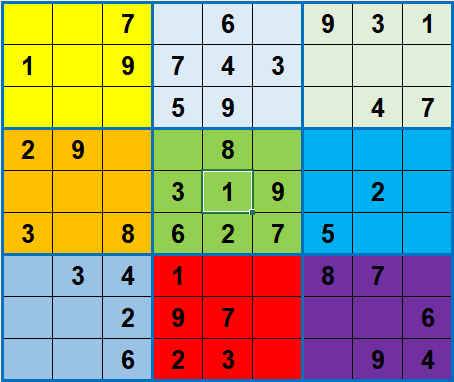
Next I wanted to be able to click a candidate to insert it
into a puzzle cell. To do this I've added nine TextBoxes to sit over the
candidate cells.
Name them TextBox 1 to TextBox 9 in the Name box as shown. This enables looping
through the TextBoxes like an array.
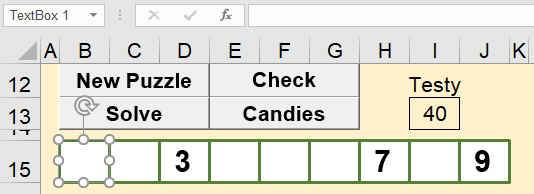
The code is changed to interact with the candidate TextBoxes instead of the
candidate cells. There are 2 modifications in the Candidates procedure.
Sub Candidates()
'Clear the
candidates when a number is in the cell and exit
If ActiveCell <> "" Then
For intLoop = 1 To 9
ActiveSheet.TextBoxes("TextBox" & Str(intLoop)).Text = ""
Next intLoop
Exit Sub
End If
and:
If blnYes Then
'Not this candidate as number is already
somewhere
ActiveSheet.TextBoxes("TextBox" & Str(intCandidate)).Text = ""
Else
'Number not in row, column or block so show
candidate
ActiveSheet.TextBoxes("TextBox" & Str(intCandidate)).Text = intCandidate
End If
Note that "TextBox" & Str(intLoop) results as "TextBox 1".
The next change is when inserting candidates on the Candies
sheet. I've changed the variable name from intPuzzleCandidateColumn to
intTextBox to reflect the switch from cells to TextBoxes.
Sub NewCandiesPuzzle()
'Candidate TextBoxes along puzzle row 15
Dim intTextBox As Integer
'No, so put
the candidates in instead
intTextBox = 1
and:
For intCandiesColumn = 0 To 2
'Place into a 3 x 3 grid
Worksheets("Candies").Cells(intRowCandies + intCandiesRow, _
intColumnCandies + intCandiesColumn) = _
Worksheets("Puzzle").TextBoxes("TextBox" & Str(intTextBox)).Text
'the
candidates from puzzle sheet TextBoxes
intTextBox = intTextBox + 1
Next intCandiesColumn
We need a new macro that all the TextBoxes will call.
Sub InsertNumber()
'Check that the
TextBox clicked displays a number
If Sheet1.TextBoxes(Application.Caller).Text <> "" Then
'It does so put
that number into the cell
ActiveCell = Right(Application.Caller, 1)
End If
End Sub
Now select all the candidate TextBoxes and assign the InsertNumber macro to
them.