Calendar using a Form
This multi use calendar pops up a Form and employs VBA. It can:
- Show any month (naturally)
- Insert the date on the spreadsheet as a value like 12/11/2018
- Insert the date on the spreadsheet as text such as Sun 12th
Nov 2018
- Create a calendar just like Calendar 1 but no formulas
To start press ALT-F11 to go to the VBA editor.
From the Insert menu add a UserForm which I've named frmDate in
the Properties box accessable on the View menu and F4.
On the form add 42 Command Buttons 24x24 in size by copying the first button and
then pasting the others.
Drag a rectangle aroung the buttons to select them then copy and paste several
times.

Double click the form.
Private Sub UserForm_Click()
Dim ctl As Control
For Each ctl In frmDate.Controls
If TypeName(ctl) = "CommandButton" Then
If Left(ctl.Name, 4) = "Comm" Then
ctl.Caption = Right(ctl.Name, 2)
End If
End If
Next ctl
End Sub
With the cursor in the procedure press F5.
When the form is displayed click the form to run the procedure for this result.
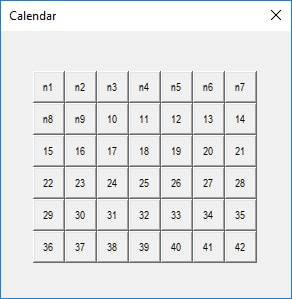
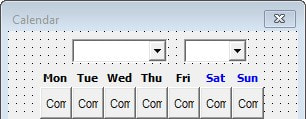
Check that the buttons are arranged as shown.
With the cursor in the procedure click in the right combo box at the top
and select Initialize to start the UserForm_Initialize()
procedure.
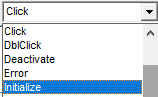
Cut and paste the above code into the Initialize procedure.
The empty Click procedure can be deleted.
On the Insert menu add a Module and here add this procedure or
macro.
Sub showFormDate()
frmDate.Show vbModeless
'allows working on the spreadsheet while the form is displayed
End Sub
On the spreadsheet add a Rectangle: Beveled, or any other object you'd like.
Hold down Alt and it will snap to the cell borders as it's getting dragged.
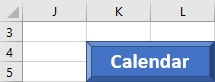
Right click the rectangle and Assign the above Macro... to the rectangle.
The Calendar should now appear by clicking the Rectangle.
Display Dates
To display this month's dates requires some global variables at the start of the
form code so different years, months and days can later be selected.
They store the current date.
Dim SetDate As Date
Dim intDay As Integer
Dim intMonth As Integer
Dim intYear As Integer
Each time the calendar is changed we'll call a standalone procedure. It starts
with some local variables.
It replaces the code in the Initialize procedure and that procedure will instead
call this procedure.
Sub SetAndDisplayCalendar(SetToDate As Date)
Dim lngFirstDay As Long
Dim intLoop As Integer
Dim intWeekday As Integer
Dim intDaysThisMonth As Integer
SetDate = SetToDate
intYear = Year(SetToDate)
intMonth = Month(SetToDate)
intDay = Day(SetToDate)
'Find number of
first of month
lngFirstDay = DateSerial(intYear, intMonth, 1)
'Calculate
how many days in this month
intDaysThisMonth = DateSerial(intYear, intMonth + 1, 1) - lngFirstDay
'Determine day of first of month
intWeekday = Weekday(lngFirstDay, vbMonday)
For intLoop = 1 To 42
With Me.Controls("CommandButton" + Format(intLoop))
'Display dates
starting back from first of month to start of week
.Caption = Day(lngFirstDay - intWeekday + intLoop)
.Enabled = True
.Font.Size = 10
.Font.Bold = False
'work out if day is outside of month
If (lngFirstDay - intWeekday + intLoop) < lngFirstDay Or _
lngFirstDay - intWeekday + intLoop >= lngFirstDay + intDaysThisMonth
Then
'if so
disable it
.Enabled = False
End If
'Highlight the
date selected. At first it will be the current date.
If .Caption = intDay And .Enabled = True Then
.Font.Bold = True
.Font.Size = 11
End If
End With
Next intLoop
'More to come
End Sub
This is the code the Initialize form event procedure is left with for now.
Private Sub UserForm_Initialize()
'More
to come
SetAndDisplayCalendar (Date)
End Sub
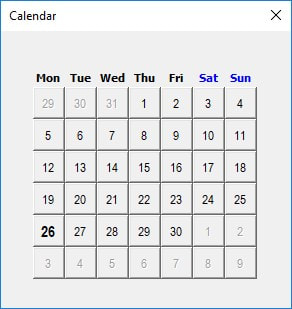
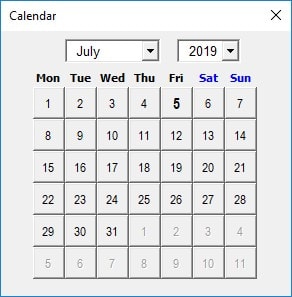
The DATE function returns the current system date.
Note that I have added Labels for the week days.
Change Dates
To change the month and year add 2 combo boxes. The left is cboMonth and the
right is cboYear.
To populate the combo boxes add the following at the beginning of the Initialize
procedure.
Dim intLoop As Integer
For intLoop = 1 To 12
cboMonth.AddItem (MonthName(intLoop))
Next intLoop
For intLoop = 2026 To 2050
cboYear.AddItem intLoop
Next intLoop
Double click cboMonth.
Private Sub cboMonth_Change()
SetAndDisplayCalendar (DateSerial(intYear, cboMonth.ListIndex + 1, intDay))
End Sub
For cboYear it's very similar.
Private Sub cboYear_Change()
SetAndDisplayCalendar (DateSerial(cboYear, intMonth, intDay))
End Sub
In the Properties box for the Combos change the font to suit.
To keep the date selected when the form is closed, add the following procedure
to the form.
Private Sub UserForm_QueryClose(Cancel As Integer, CloseMode As Integer)
Cancel = True
Me.Hide
End Sub
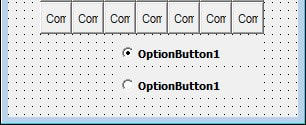
Add 2 Option buttons to select the date style to be inserted into a cell on the
spreadsheet.
They are named optDateNormal and optDateOrdinal.
At the top of the form code add another global variable.
Dim intOrdinalPosition As Integer
At the top of the SetAndDisplayCalendar procedure add a local variable.
Dim strOrdinal As String
At the end of the procedure add this code.
cboMonth.ListIndex = intMonth - 1
cboYear.ListIndex = intYear - 1950
TextBox1.SetFocus 'move the textbox out of sight
Select Case intDay
Case 1, 21, 31: strOrdinal = "st"
Case 2, 22: strOrdinal = "nd"
Case 3, 23: strOrdinal = "rd"
Case Else: strOrdinal = "th"
End Select
optDateOrdinal.Caption = Format(DateSerial(intYear, intMonth, intDay), "ddd ")
'Record where to superscript the ordinal when
the date is inserted on the spreadsheet
intOrdinalPosition = Len(optDateOrdinal.Caption)
optDateOrdinal.Caption = optDateOrdinal.Caption & Format(intDay) & strOrdinal
_
& Format(DateSerial(intYear, intMonth, intDay), " mmm yyyy")
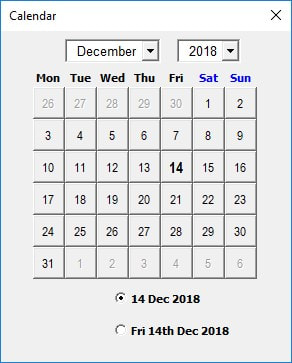
optDateNormal.Caption = Format(SetDate, "d mmm yyyy")
The results is this.
To click a date button and thereby change the date of the option buttons requires
setting up a button group.
On the Insert menu select a Class
Module and name it ClassButtonGroup in the Properties box.
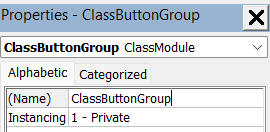
Add this code to the Class Module.
Option Explicit
Public WithEvents ButtonGroup As CommandButton
Private Sub ButtonGroup_Click()
frmDate.DateButtonClick (Me.ButtonGroup.Caption)
End Sub
The buttons are allocated to the ButtonGroup when the form is shown.
This is added to the procedure already in the Module.
Option Explicit
Public Buttons() As New ClassButtonGroup
Sub showFormDate()
'Create the 42 Date
Button array
'Button clicks are first
handled in the ClassButtonGroup Class Module
Dim intButtons As Integer
Dim ctl As Control
For Each ctl In frmDate.Controls
If TypeName(ctl) = "CommandButton"
Then
If
Left(ctl.Name, 7) = "Command" Then
intButtons = intButtons + 1
ReDim Preserve Buttons(1 To intButtons)
Set Buttons(intButtons).ButtonGroup = ctl
End If
End If
Next ctl
frmDate.Show vbModeless
'allows working on the
spreadsheet while the form is displayed
End Sub
Add the procedure in the form code section which the ButtonGroup_ click calls.
Public Sub DateButtonClick(strButtonCaption As String)
SetAndDisplayCalendar (DateSerial(intYear, intMonth,
Val(strButtonCaption)))
End Sub
If you want to visualize the flow of the code add a Break point to the Class Module
procedure.

Run the Calendar and click a date button then step through the code with F8.
Inserting the Date into a Cell on the Worksheet
Add a CommandButton named cmdInsert.
Double click the button and enter the following code.
Private Sub cmdInsert_Click()
If optDateNormal Then
ActiveCell.NumberFormat = "d mmm yyyy"
ActiveCell = DateSerial(intYear, intMonth, intDay)
Else
ActiveCell.NumberFormat = "General"
ActiveCell = optDateOrdinal.Caption
ActiveCell.Characters(intOrdinalPosition + Len(Str(intDay)),
2).Font.Superscript = True
End If
End Sub
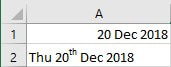
Here are the two different results on the spreadsheet.
A1 is a number whilst A2 is text.
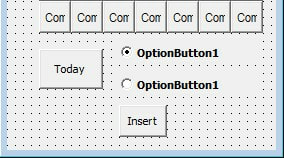
Add a button to select the date for today again, then double click it.
Private Sub cmdToday_Click()
SetAndDisplayCalendar(Date)
End Sub